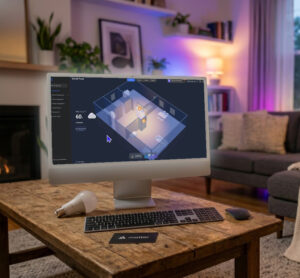
With the evolution of Tuya.ai and the introduction of new web-based dashboards, this restriction is finally a thing of the past! You can now effortlessly control and manage your Smart Life devices directly from your web browser on any Windows PC or Mac.
💡 Why Use Smart Life on Your PC?
- Enhanced Overview: Monitor dozens of devices, cameras, and sensors simultaneously on a large screen.
- Higher Workday Efficiency: No need to break focus or grab your phone while working at your computer.
- Live Camera Monitoring: Keep live security camera streams or baby monitor feeds running on a secondary monitor.
- Faster Automation Setup: Easily configure complex scenes and routines using a mouse and physical keyboard.
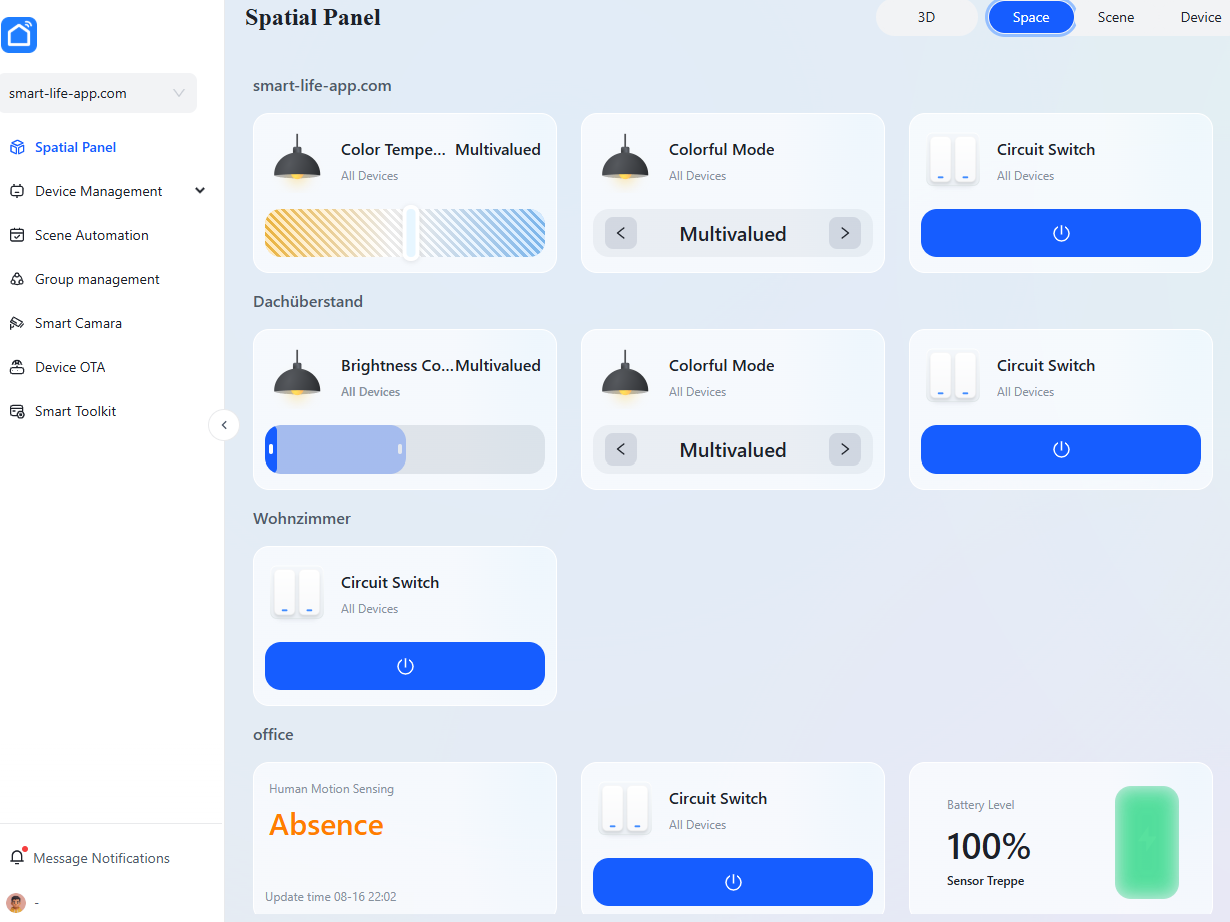
The official Smart Life / Tuya Web Dashboard running on a desktop browser.
🛠️ Step-by-Step Guide: Setting Up Smart Life on Desktop / PC
While emulator options exist, the standard web method powered by Tuya Cloud provides a seamless, native experience without installing heavy third-party software. Here is how to set it up:
Step 1: Access the Tuya Web Portal
- Open your preferred browser (Chrome, Edge, Firefox, or Safari) on your PC or Mac.
- Navigate to the official Tuya Web Control Center portal (https://eu.device.tuya.ai/login).
- You will see a login page displaying a QR code for authentication.
Step 2: Scan with the Smart Life Mobile App
- Open the Smart Life App on your mobile device.
- Tap the "Me" profile tab located at the bottom right corner.
- Locate and tap the QR Code scanner icon at the top right corner.
- Scan the QR code displayed on your desktop browser monitor.
- Confirm the desktop login prompt on your phone.
Step 3: Access Dashboard & Devices
Upon confirmation, the web dashboard automatically loads your configured rooms, smart devices, and automation scenes directly from the Smart Life Cloud. You are now ready to control your home directly from your desktop!
🔮 What Can You Do on the Tuya.ai Web Dashboard?
- Device Control: Toggle smart plugs, turn lights on/off, adjust color temperature, and fine-tune dimming levels.
- Live Camera Feeds: Stream multiple security camera channels simultaneously on your desktop screen.
- Sensor Monitoring: Check real-time temperature, humidity, water leak, or motion sensor status at a glance.
- Scene Execution: Trigger pre-configured Tap-to-Run smart scenes with a single mouse click.
❓ Frequently Asked Questions (FAQ)
Is using the Smart Life Web Dashboard free?
Yes. Basic web access via QR code authentication for personal Smart Life app users is free. Enterprise tiers exist only for advanced developer features on the Tuya IoT development platform.
Do I need an Android emulator (e.g., BlueStacks)?
No! While emulators were necessary in the past to run mobile apps on PC , the native web integration provided via Tuya allows browser access without installing third-party emulator software.
Does this work with the Tuya Smart App as well?
Yes. Because Smart Life and Tuya Smart rely on the same underlying cloud infrastructure, the QR code login method works identically across both applications.
Conclusion
Desktop compatibility via Tuya.ai fills one of the most requested features in the Smart Life ecosystem. It simplifies daily routine management and home office control immensely. Try accessing the portal today to set up your custom desktop smart home control panel!