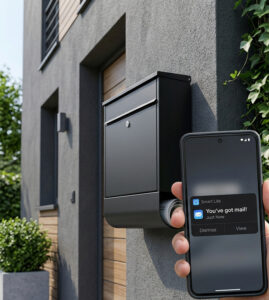
Never walk to an empty mailbox again! Imagine getting an instant notification on your phone the exact second the mail carrier drops something into your letterbox. With a simple DIY smart home hack using a standard door/window sensor and the Smart Life App, you can make your mailbox smart in just a few minutes.
In this guide, we’ll show you step-by-step how to set up your own smart mailbox notification system.
Before you begin
make sure you have:
A basic understanding of how to use the Smart Life App and create custom automations.
A Zigbee or Wi-Fi door/window contact sensor (note: Zigbee sensors require a compatible gateway/hub).
What You Will Need:
Smart Door/Window Sensor (magnetic contact sensor)
A Mailbox with a mechanical slot or opening flap
Good Wi-Fi or gateway signal near your mailbox location
Neodymium magnets (optional, highly recommended for compact metal mailboxes)
Step-by-Step Installation Guide
Step 1: Pair the Sensor
Integrate your door/window contact sensor into the Smart Life App via your gateway.
Rename the device to something recognizable, such as „Mailbox“ or „Postbox“.
Step 2: Position the Sensor inside the Mailbox
Mount the main body of the sensor inside your mailbox housing and attach the smaller magnetic counterpart to the inside of the mail slot flap.
When the flap is closed, the sensor should read as „Closed“.
💡 Pro Tip: If your mailbox is tight on space or the standard magnet parts don’t align easily with the flap, use small neodymium magnets instead. They are extremely compact, highly magnetic, and work perfectly if your mailbox flap is made of metal.
Step 3: Test the Mechanism
Open and close your mailbox flap to ensure the sensor status shifts reliably between open and closed in the Smart Life App.
Step 4: Create the Smart Life Automation
Now, set up the trigger that sends a notification straight to your phone:
Open the Smart Life App and go to the Automation tab.
Tap + to create a new automation.
Under „When device status changes“, select your Mailbox Sensor.
Choose the trigger condition: when the status turns „ON“ (i.e., when the flap opens and the magnetic contact breaks).
Under „Run Task“, select „Send Notification“ -> „Message“.
Name your automation something catchy like „You’ve got mail!“ and save it.
That’s it! Every time mail is delivered, your phone will let you know immediately.